Receipt Submission
Project Summary
This Canvas app feature allows employees to submit purchase receipts directly from a mobile-friendly Power Apps interface. The solution helps Accounts Payable receive organized receipt submissions with supporting attachments, employee details, and job-related information when applicable.
Receipt Entry Decision Point
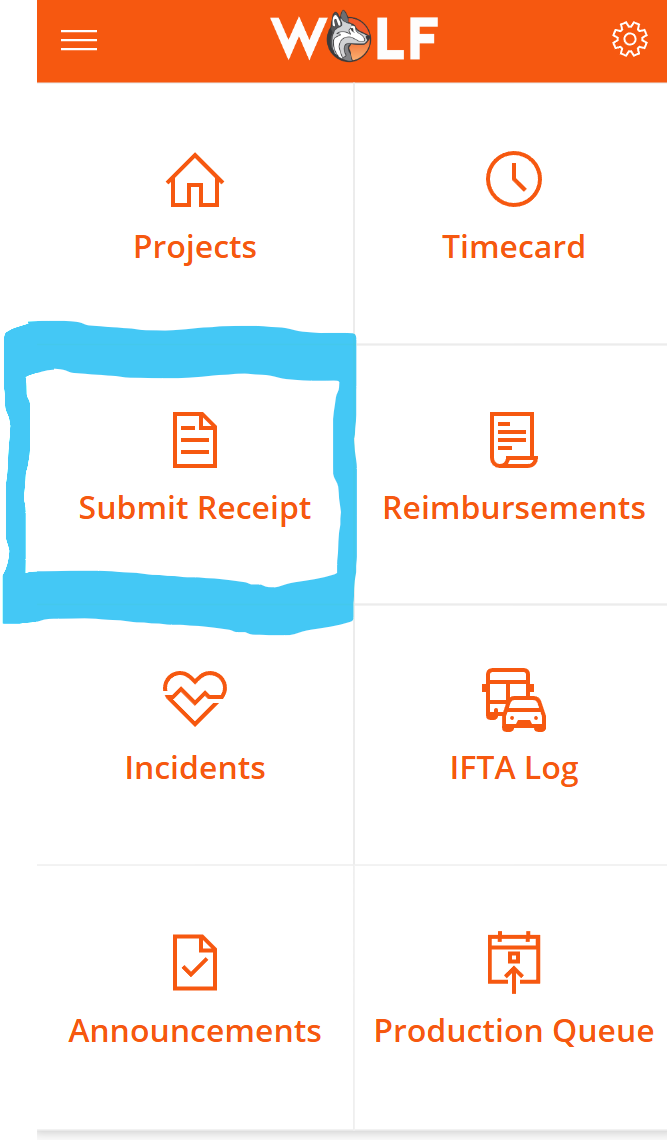
The receipt process begins by asking whether the purchase is job related. This keeps the user experience simple while still allowing the company to capture the additional job and task information needed for project-related expenses.
Job-Related Receipt Submission
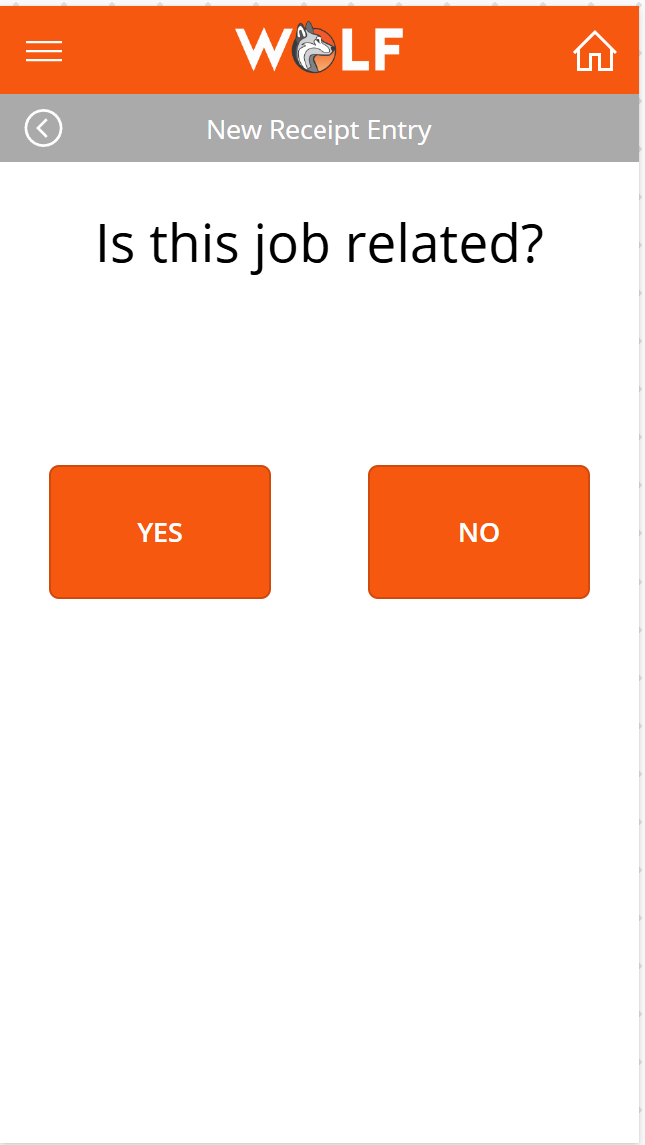
If the receipt is job related, the employee is required to select the related job and task before submitting. This helps Accounts Payable understand where the purchase belongs and gives the business cleaner information for job costing and expense tracking.
Home Screen Access
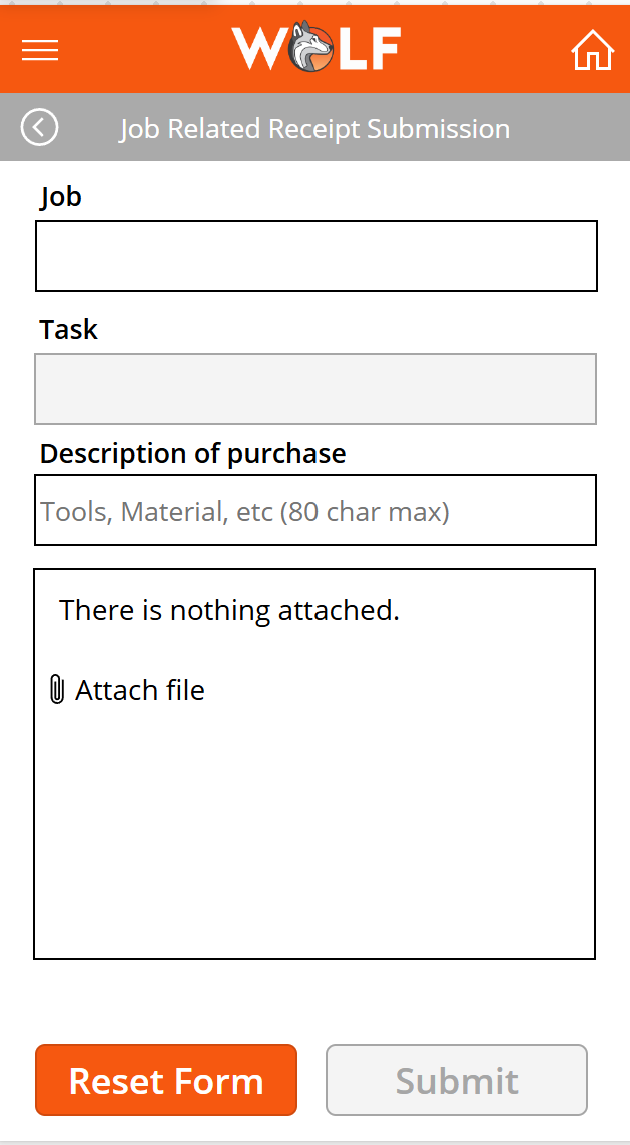
The Submit Receipt tile is available from the main app home screen, making receipt submission easy for employees to access alongside other daily tools such as projects, timecards, reimbursements, incidents, and IFTA logs.
Submit Button Logic
The Submit button validates that at least one attachment has been added before allowing the receipt to be sent. It then builds a structured category using the selected job, task, and purchase description, creates a clear email subject and body, attaches the uploaded receipt files, and sends the submission to Accounts Payable.
If(
    CountRows(JobReceiptAttachmentControl.Attachments) = 0,
    Notify(
        "Please add at least one attachment before submitting.",
        NotificationType.Error
    ),
    Set(
        varJobTaskCategory,
        SelectedJob.Job_No & "_" & SelectedJobTask.Task_No & "_" &
        Substitute(JRReceiptSubmissionFormPurchaseCategoryValue.Text, "/", "_")
    );

    Set(
        varEmailSubject,
        "App Receipt" & "_" & varJobTaskCategory & "_" & RandBetween(1, 999)
    );

    Set(
        varEmailBody,
        "Job/Task/Category: " & varJobTaskCategory & Char(10) &
        "Submitted by: " & User().FullName & " (" & User().Email & ")"
    );

    Set(
        varEmailAttachments,
        ForAll(
            JobReceiptAttachmentControl.Attachments,
            {
                Name: varJobTaskCategory & "_" & Name,
                ContentBytes: Value
            }
        )
    );

    Office365Outlook.SendEmailV2(
        "ap@wolfind.com",
        varEmailSubject,
        varEmailBody,
        {
            Cc: If(
                First(EmployeeDetailsCollection).GlobalDim1 = "FIELD SERVICE",
                "thuegel@wolfind.com",
                Blank()
            ),
            Attachments: varEmailAttachments
        }
    );

    Reset(JobReceiptAttachmentControl);
    ResetForm(JRReceiptSubmission_Form);
    Clear(JobsListCollection);
    Clear(JobDetailsCollection);
    UpdateContext({ showDialog: true })
)
What Accounts Payable Receives
Accounts Payable receives an email with the receipt attachment, the employee name and email, and a subject line that includes the job number, task number, and purchase category. This gives AP enough context to process the receipt without needing to chase down missing information.
Stakeholder Requirement
A stakeholder requested that if an employee from the Field Service department submits a receipt, the project manager should be notified. The formula handles this by checking the employee department value and automatically adding the project manager as a CC recipient when the employee belongs to Field Service.
Business Impact
This feature reduces manual receipt handling, improves AP visibility, and helps project-related purchases include the correct job and task information. It also supports faster communication between field employees, Accounts Payable, and project management.
Skills Demonstrated
Canvas app design, Power Fx validation, conditional logic, attachment handling, Office 365 Outlook integration, dynamic email generation, form reset behavior, collection management, stakeholder-driven requirements, and mobile business process design.